We invest significant time, effort, and passion in bringing a website and its content to the web. Thanks to Drupal, content creation and publishing have never been easier. Your website may contain hundreds of pages, offering substantial value to the end user.
However, the success of a website depends not just on the quality of its content, but also on how easily users can find that content. A fast, responsive, and 'smart' search page is an integral part of every modern website, enhancing user engagement and retention. A poor search experience might lead to users discontinuing their use of your website.
Algolia is a proprietary search-as-a-service platform designed for use cases requiring high-quality and relevant search capabilities. It is a hosted search engine and can be integrated to websites using APIs to provide consumer grade search experience. It is capable of delivering real-time results from the first keystroke.
This is the first part of a three-part blog series, where we will explore how to integrate Algolia with Drupal to create a multilingual search page for the umami profile. In this first part, we will look into a basic integration, offering a comprehensive overview of each step.
We will be using “search_api” and “search_api_algolia” modules for indexing the content and then Javascript (instantSearch.js) to create the search page. In the second and third parts, we will dive deeper into structuring the content before indexing. This series is mainly focused for developers and has code level explanations.
Before we start..

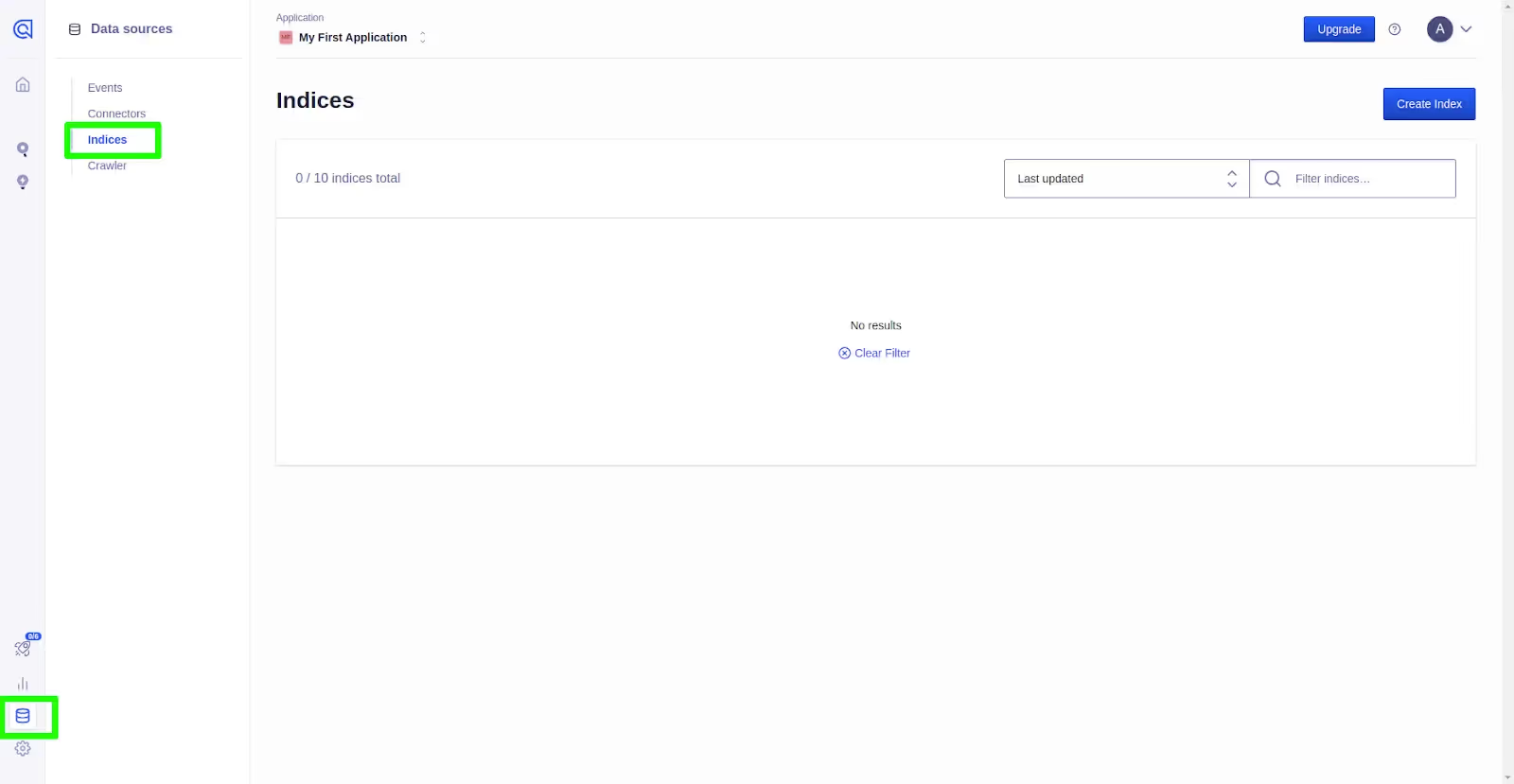
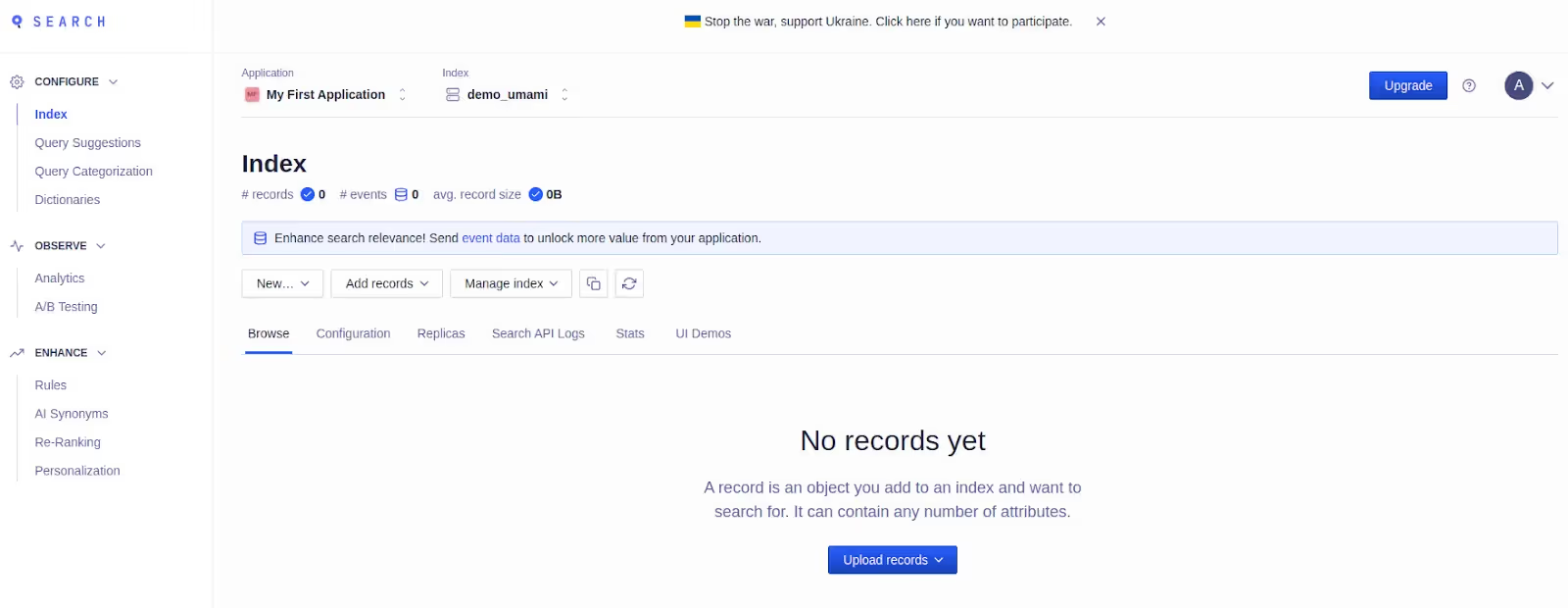
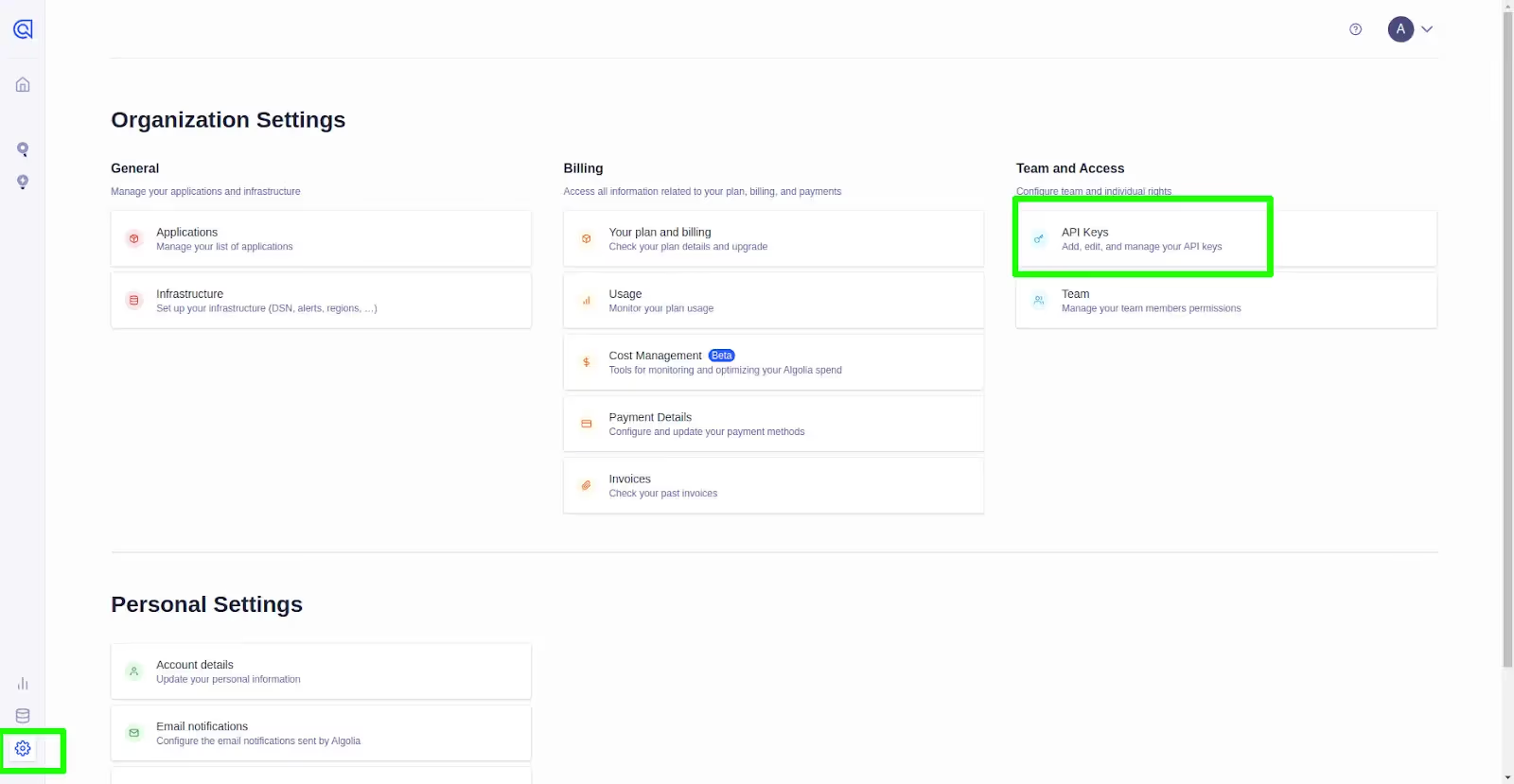
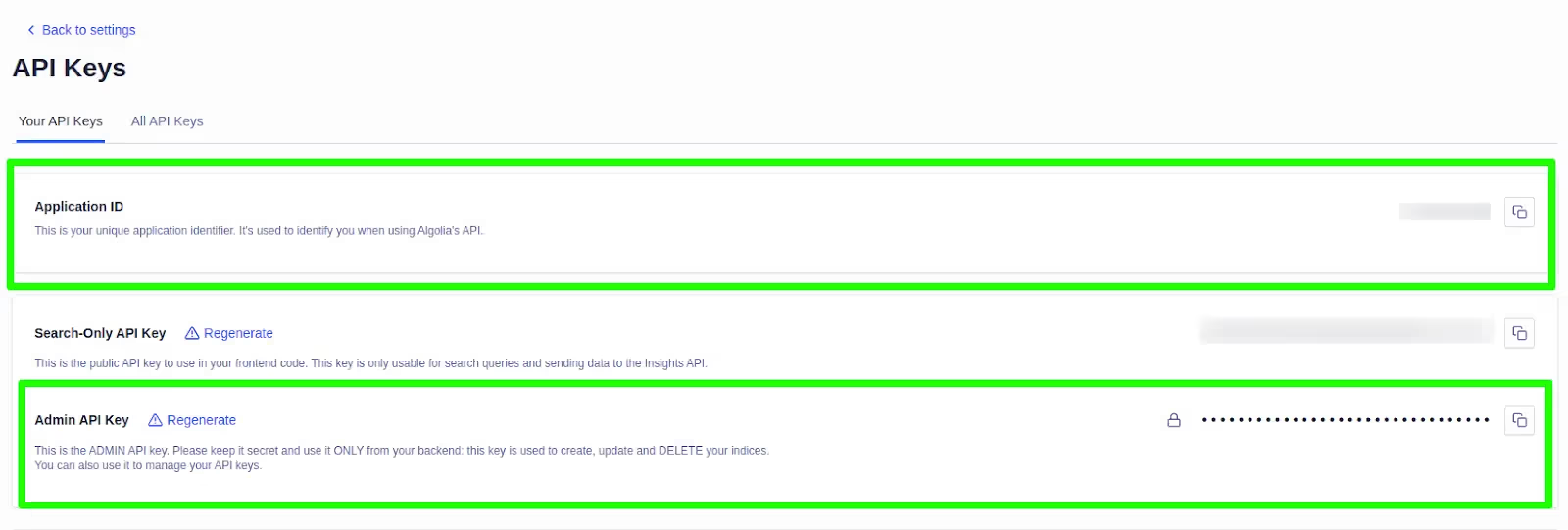
We are all set. Let’s start the implementation. In a nutshell, Integrating Algolia search involves 3 key steps.
Indexing contents from Drupal backend
composer require 'drupal/search_api_algolia:^3.0@beta'
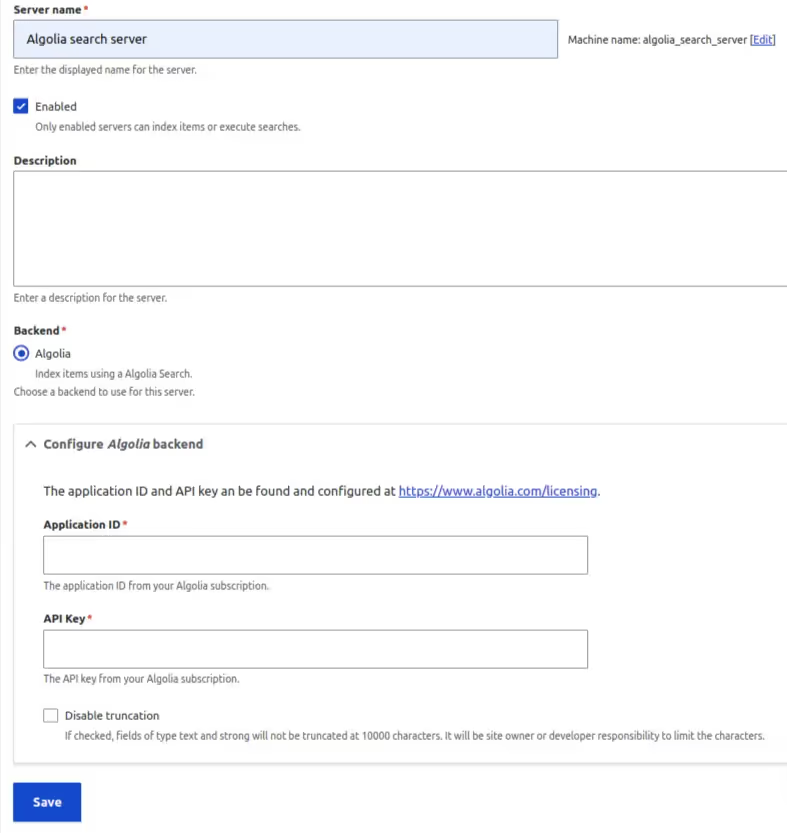
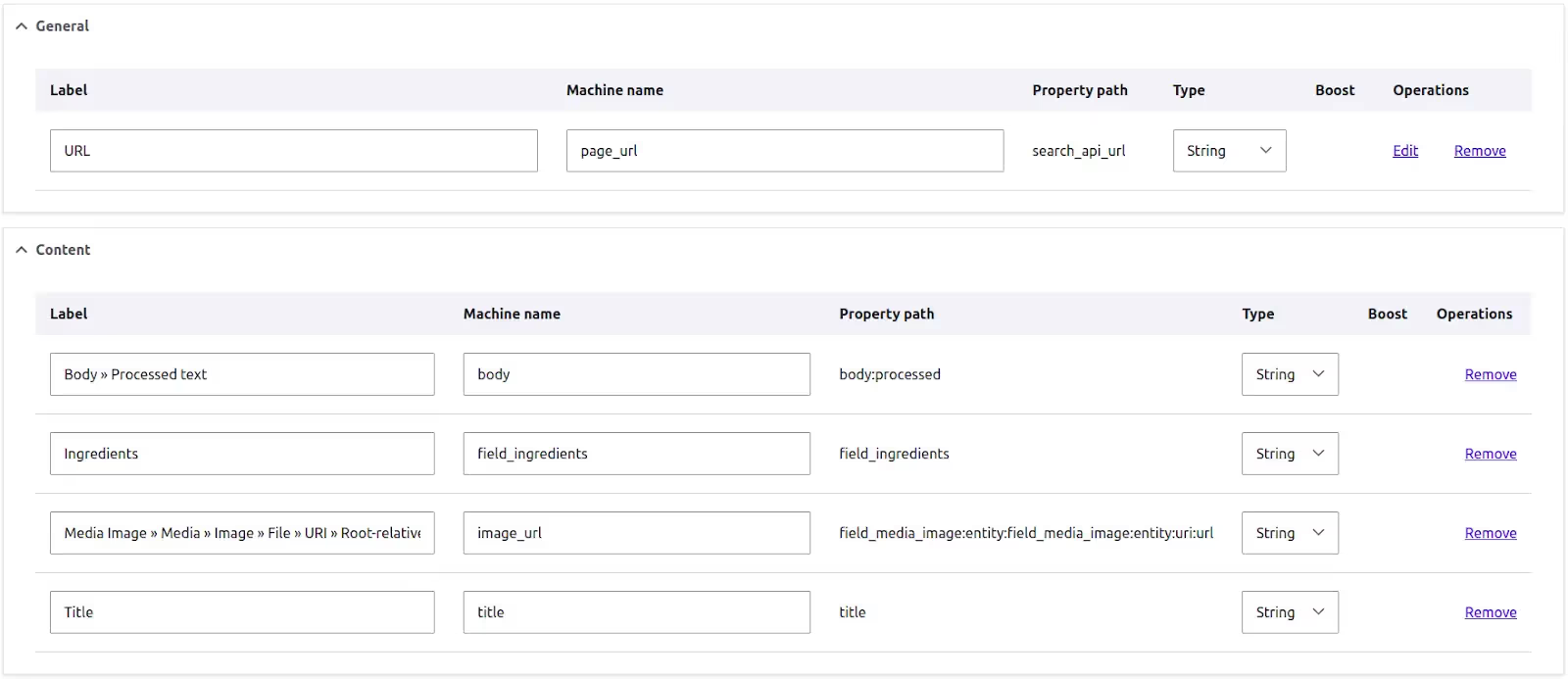
Now we are all set. Index the contents from /admin/config/search/search-api/index/demo_umami. Once completed, Go to your Algolia dashboard and view the index. You will see all the indexed contents from our site in the dashboard. As mentioned earlier, each indexed content is called a “Record”. Every record will have a unique “objectID”. You could even perform a search from the dashboard and see the results.
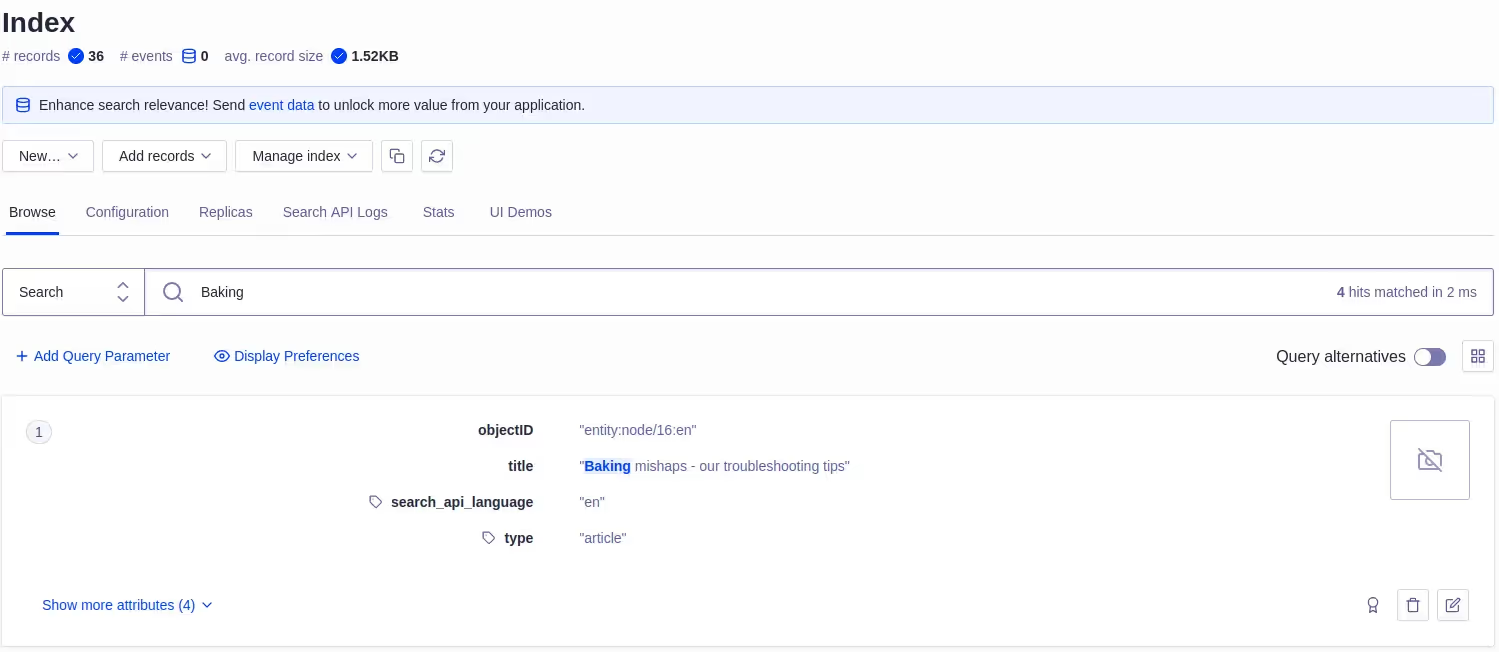
Configuring the indexed data from Algolia dashboard
Before creating the search page on the website, We need to do some configurations in the dashboard to make the search results more relevant.
Configuration-1: Define searchableAttributes
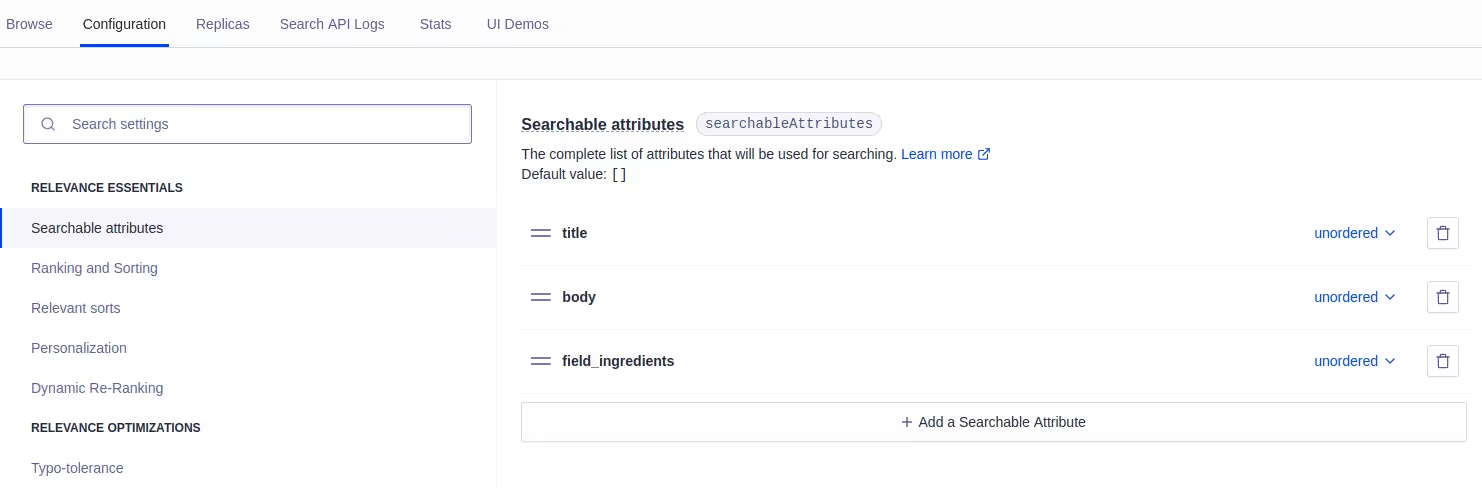
Configuration-2: Define attributesForFaceting

Configuration-3: Define attributesToSnippet
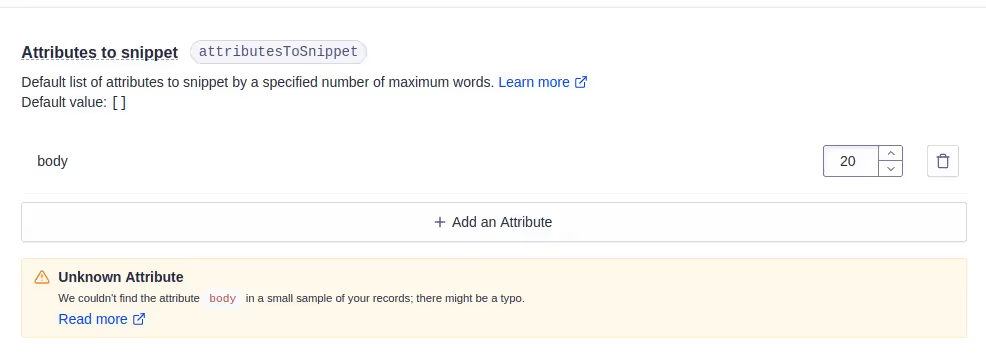
All essential dashboard configurations for this part are completed. Now let's build the search UI to display the search results on our website.
Creating the search UI in Drupal using instantSearch.js
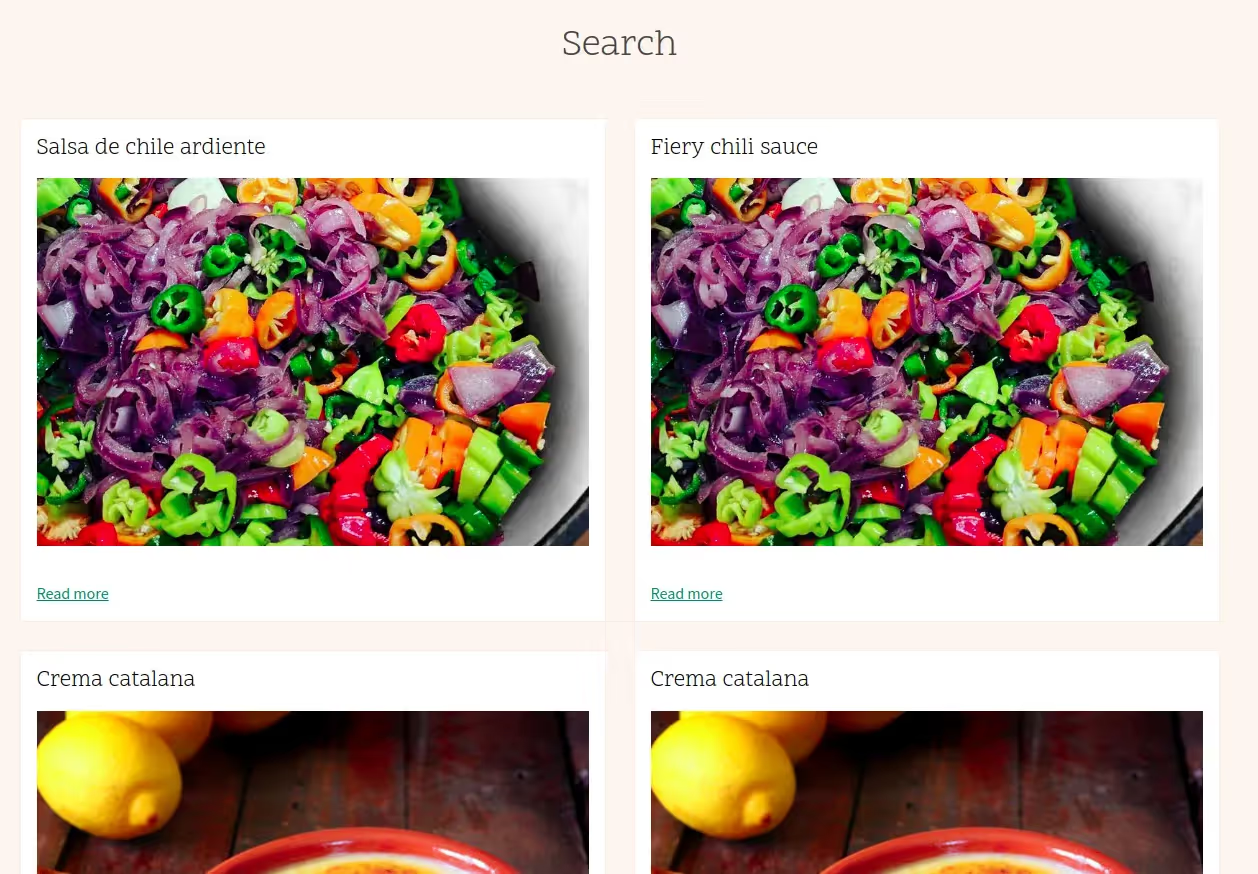
If you navigate to /recipes or /articles in your Umami site, you will see the articles/recipes listed as cards. We are going to reuse this design in our search page. For that, We will define the same HTML structure for the search results and attach the libraries that style the cards to the search page. We will be using instantSearch.js to build the search UI.
This section is divided into 3 sub-parts.
Render the indexed data in card form reusing existing styles
Let's break down the code.
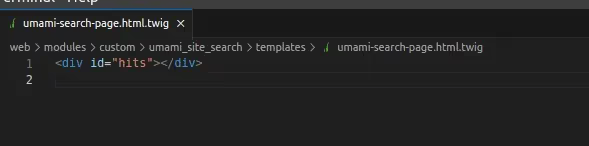
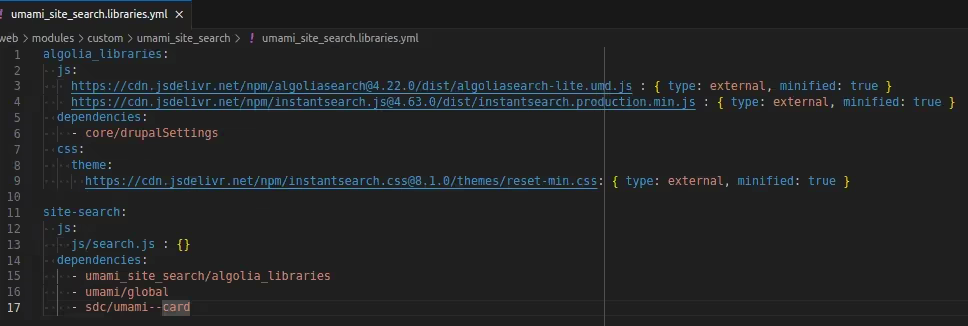
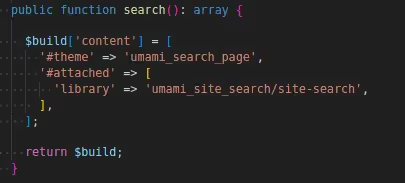
Add a search box to the search page
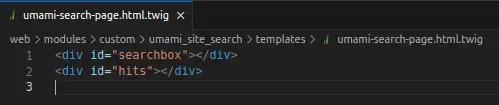
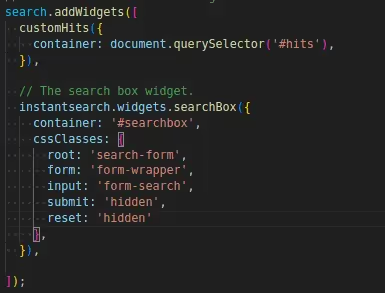
Now let’s add a “search box” widget so that users can actually type something and search.
Filter the results based on language
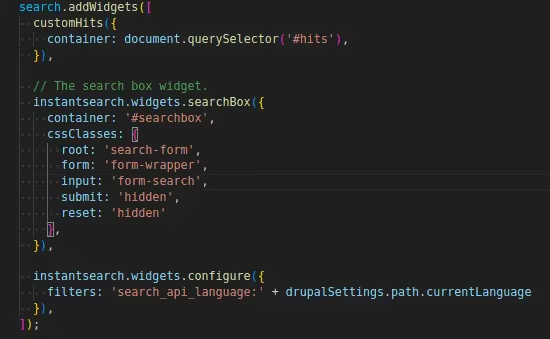
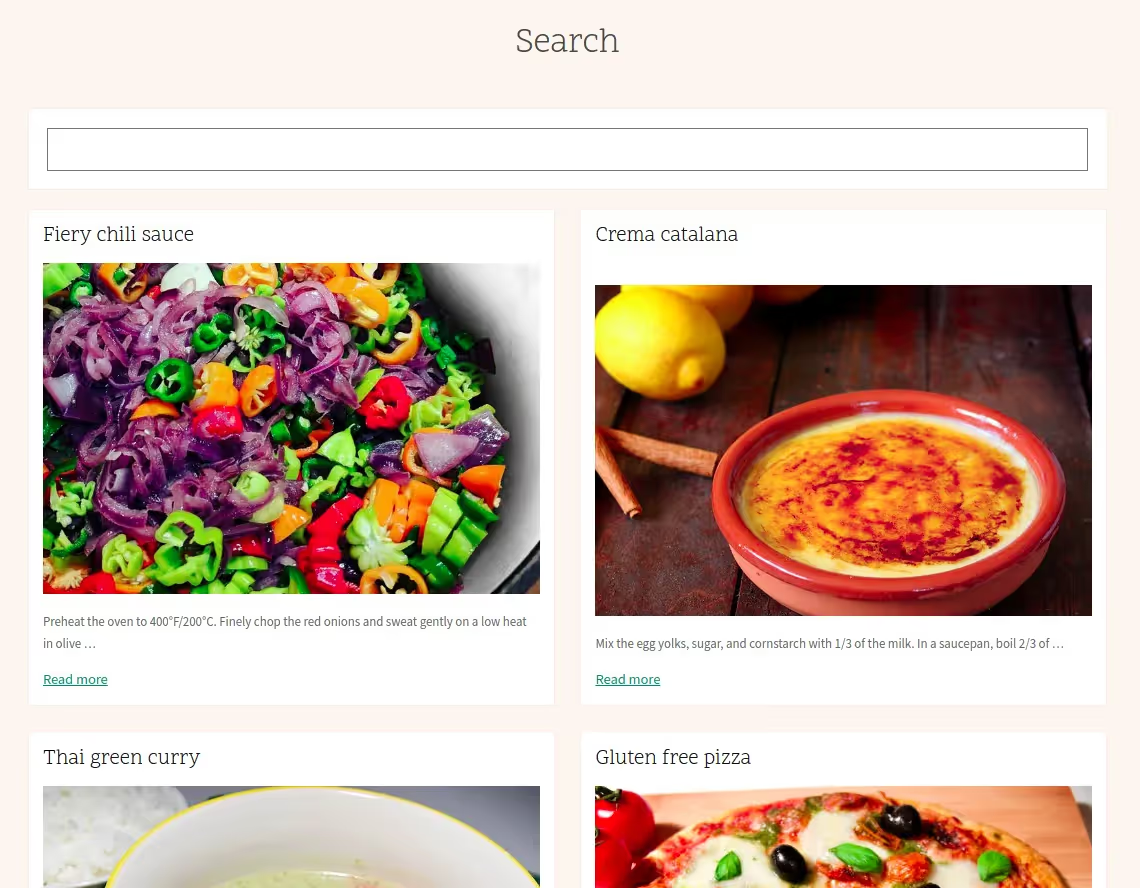
This concludes the first part of our Journey. We've successfully built a fast, responsive, and language-dependent search page. Let’s recap what we’ve learned so far.
You can find the entire code in this git repository.
Remember that this demo was just a teaser. The true thrill lies ahead in our next segment, where we will take a deeper look into structuring the data from the drupal backend with the help of search api processors.