We often come across pop-ups while browsing websites. We usually accept the cookies without knowing anything about them, to browse the website without any hiccups. So, let’s understand what browser cookies are and how to test them.

What is a cookie?
A cookie or browser cookie is a small piece of data from a specific website that is stored on the user’s browser while they access that website. In other words, a cookie is nothing but the user's identity for their browser. This information gets saved in the form of a text file by the web server and can be used to interact with the server through the browser. It makes it easier for the browser to remember the user and the navigation they do, on their next visit.
What are the uses of a browser cookie?
Browser cookies have different functions such as:
Cookies were designed to identify the system, however, they are now also being used to keep a track of user’s online activity. This can be a threat to user’s privacy, depending on how the website decides to use this information.
Why should we test cookies?
Cookies contain user's information that can be used to communicate between different web pages and track a user’s website navigation. To avoid any security threats, it is important to keep a check on how cookies are written and saved in the system. Since some functionalities might behave differently when cookies are set, it’s crucial to test the cookies to verify how an application behaves and responds based on the status of the cookie.
How do cookies work?
Let’s understand how cookies work with an example: Suppose you visit an e-commerce website for the first time. The website will assign a cookie in your system as a unique identifier. This unique id is then used to keep track of your overall browsing session from start to finish. It keeps a check on all the products you browse or add to your cart and use the information to suggest similar products to you.
In this scenario, the cookie is specific to the website and can’t track you on a different website.
What are the properties of a browser cookie?
Go to the Application Tab and click on the Dev tool, there you can find the option to access the browser cookie.
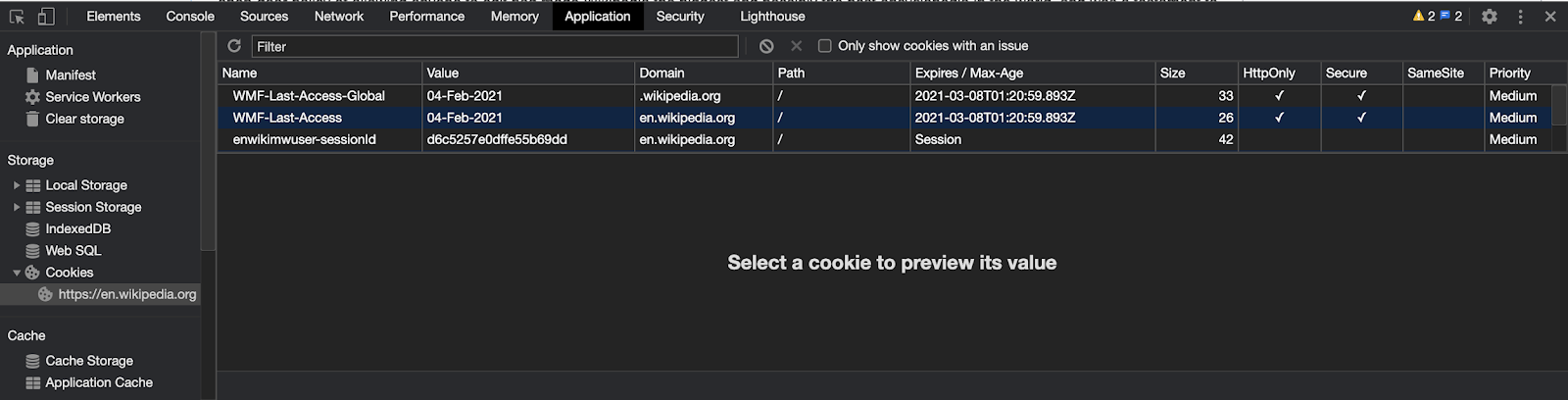
Name: This is the cookie’s name, which is set by the server
Domain: This attribute is used to indicate if the browser should accept cookies or not
Let's look at some scenarios of different domains:
Expires/Max-Age: This attribute indicates the expiration date of the cookie. This is mostly a session cookie, which means the cookies will expire when the user closes the browser window.
HTTPOnly: If a value of this attribute is true, it means that the cookie can only be used by the website built over HTTP and not by the javascript code.
Secure: If the value of this attribute is true, it means the cookie can only be used over a secure connection, i.e. HTTPS.
SameSite: This attribute is used to improve cookie security by preventing cross-site request attacks and privacy leaks.
The values of SameSite are the following:
Now, let's take a scenario where the cookie is set as SameSite=Strict. The site you are browsing has a button called “Login” which displays an image to the user. The user can access the image only when the set cookie is sent from the same site and not from any third-party website.
Strict prevents the cookies to be sent over on a cross-site request.
Let's look at some more attribute values and the respective scenarios:
Domain = ‘.example-a.com’ SameSite = Lax;
Suppose a user is browsing an example-a.com website that contains a link from another example-b.com website. If the user accesses that link to go to example-b.com, then it's called a cross-site request. The Lax cookies will be sent to example-b.com, but not the Strict cookies, as this is a cross-site request.
What are the top scenarios for testing browser cookies?
1. If the website uses cookies for its major functionality, then it will ask you to enable the cookies to function properly.
2. That page must not crash if you disable the cookies.
What are the extensions/plugins for cookie testing?
There are multiple extensions or plugins that can be used to test or edit the cookies. The most common one is EditThisCookie. This is a cookie editor and a Google Chrome extension.
Suppose you are browsing the site https://en.wikipedia.org/wiki/Main_Page. The EditThisCookie chrome extension will enable you to test or edit the cookies.
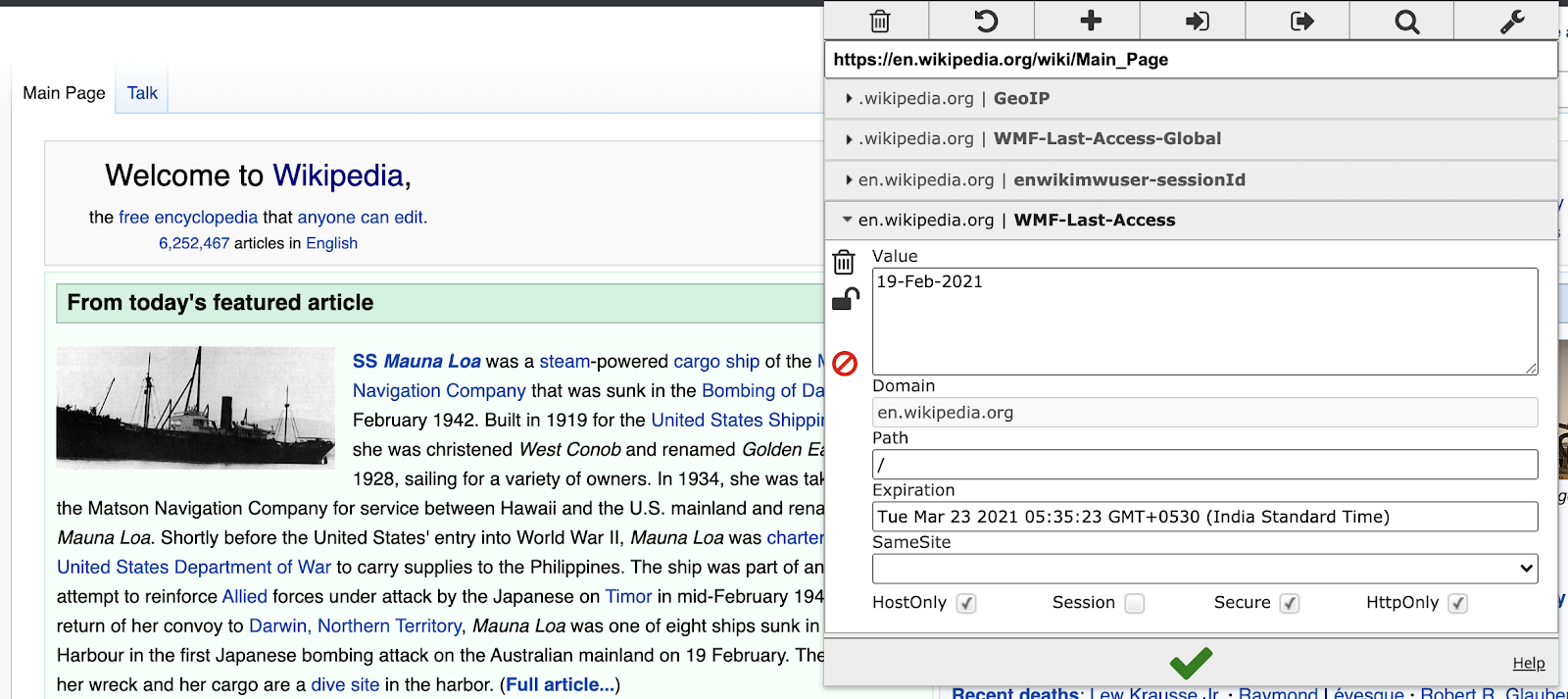
The pop-up screen for this extension displays the options to edit or test the cookies as per the requirement.
How to expand a cookie?
Can cookies be managed with automation testing?
Yes, every tool in automation testing allows managing the browser cookies. It helps in automating the website functionality that is dependent on the cookie. Sharing some guideline documents of what these tools are and how the cookies can be managed in the automation test suite.
Selenium - https://www.selenium.dev/documentation/en/support_packages/working_with_cookies/
Cypress - https://docs.cypress.io/api/cypress-api/cookies.html#Syntax
NightWatch - https://nightwatchjs.org/api/commands/#cookies-headline
WebdriverIO - https://webdriver.io/docs/api/browser/getCookies/
Happy Cookie Testing!